PTT Chat guide
How to use PTT Chat.
Everything PTT Chat does, step by step. Read it top to bottom, jump straight to what you need, or learn by doing on a pretend phone in practice mode.
1 · Get started
Join, sign in or sign up.
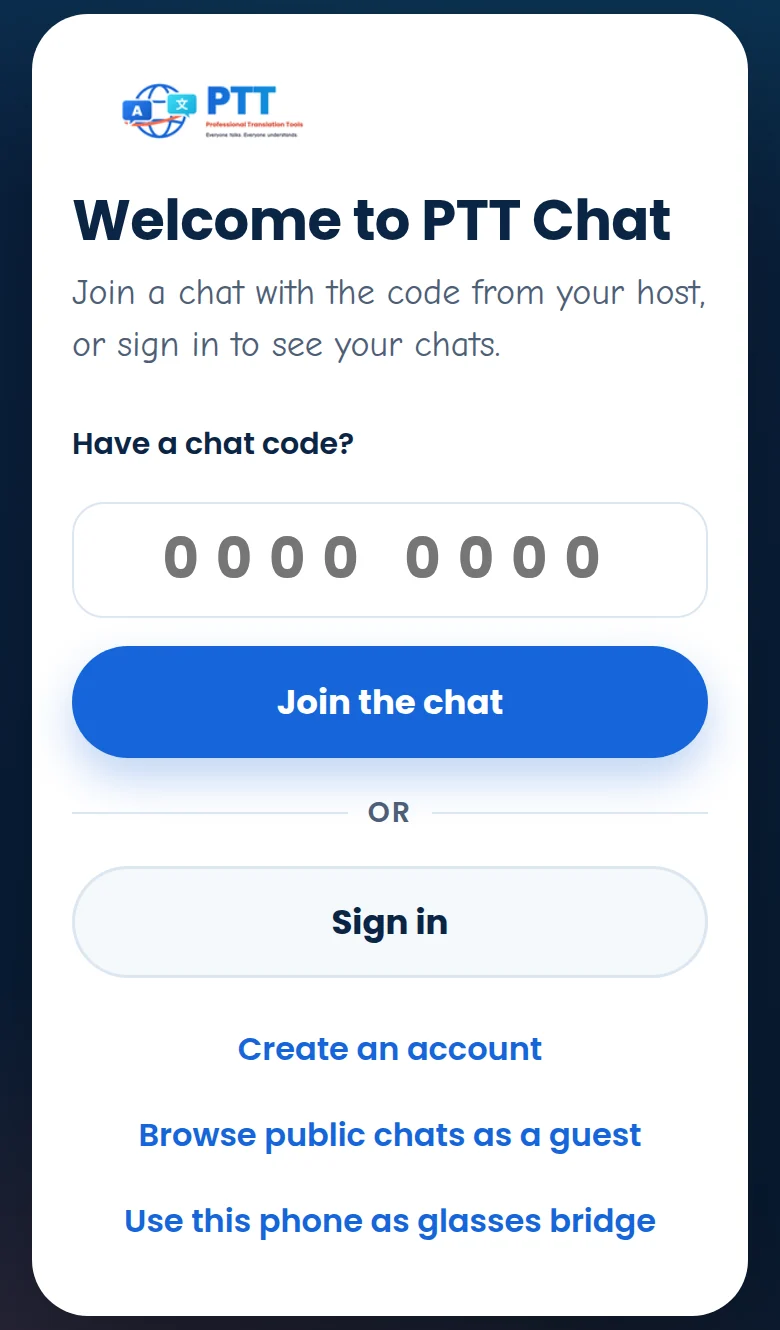
Open PTT Chat in any modern browser. There’s nothing to download.
- Got a chat code? Type the 8 digits under Have a chat code? and tap Join the chat. No account? Tap Join as a guest, pick your language, and you’re in.
- Sign in. Tap Sign in, enter your mobile number and tap Send my code. Type the 6-digit code we send you (by email on free accounts, by text on paid plans). Prefer a password? Tap Use a password instead.
- New here? Tap Create an account. Add your name, a screen name others will see, your mobile number, email and a password, then tap Create my account. It’s free.
- Just looking? Browse public chats as a guest lets you read public chats without an account.
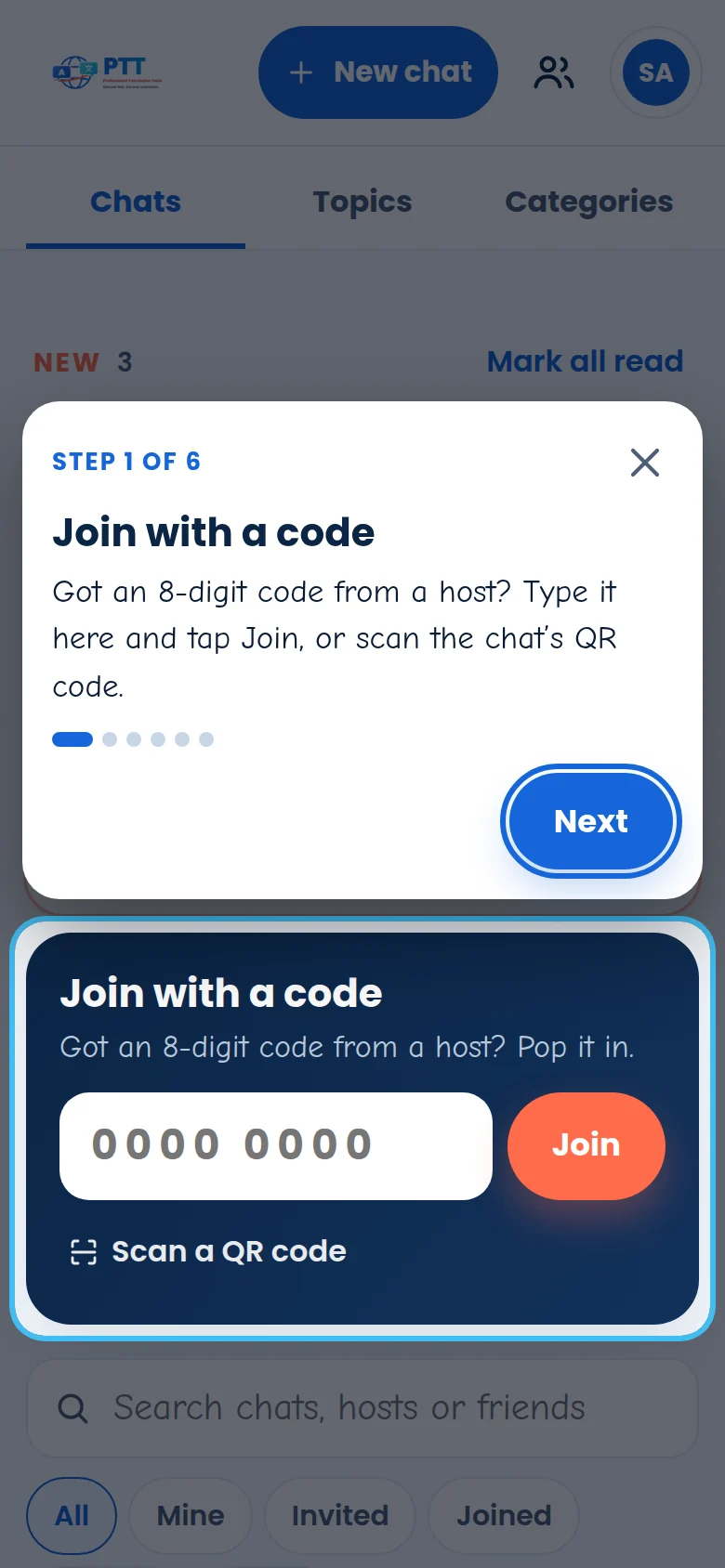
- Take the tour. The first time you sign in, PTT offers a one-minute tour. Tap Show me around. You can take it again any time from your account button → Take the tour.
Add PTT Chat to your phone’s Home Screen, or install it from your browser’s menu on a computer, and it opens like an app.
2 · Your chats
Find your way around the list.
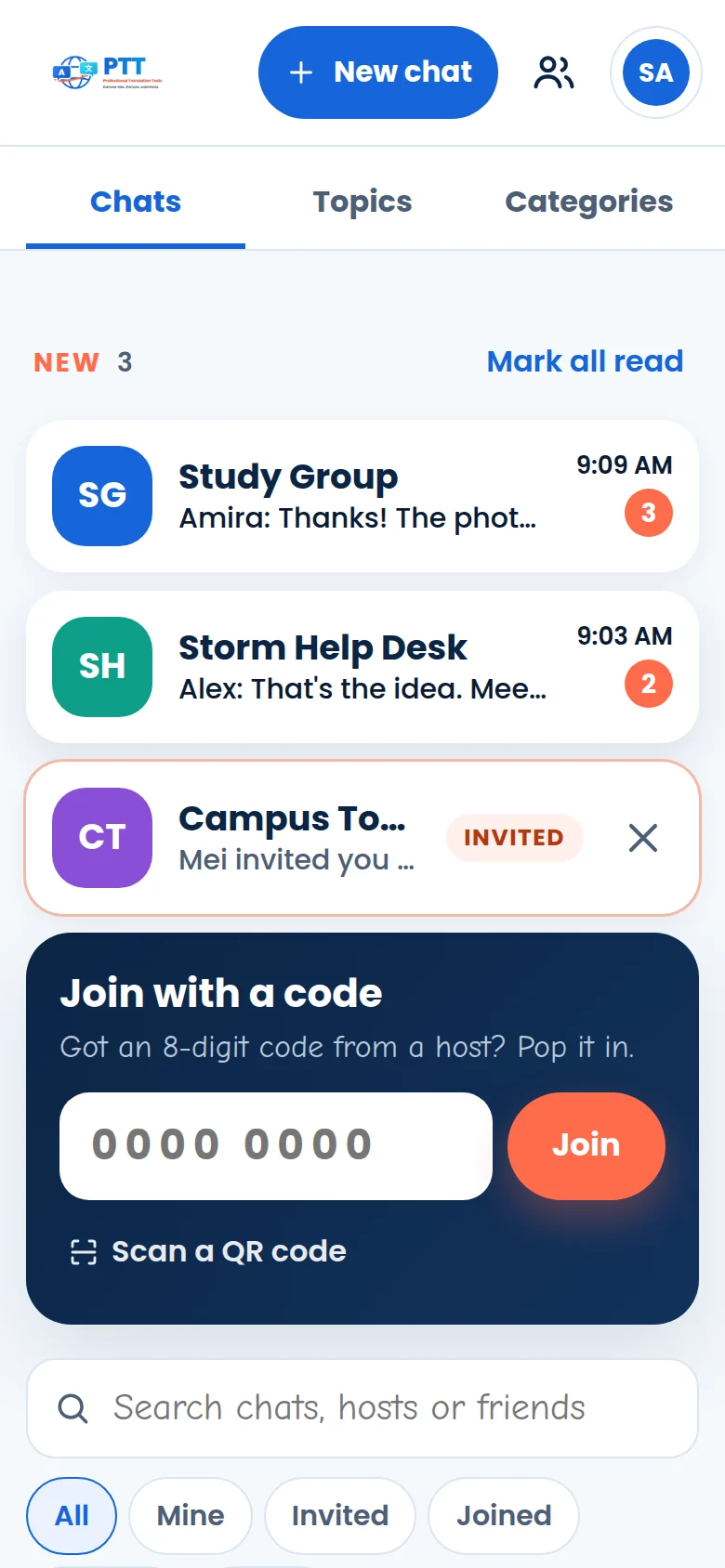
Everything you’re part of is on one list, and anything new is at the top.
- New. Chats with unread messages, invitations you haven’t opened and friend requests. Tap one to open it, or Mark all read.
- Join with a code. Type a code and tap Join, or Scan a QR code with your camera.
- Search. Type a chat’s name, its host, a friend’s name or the code. The buttons underneath narrow it down: All, Mine, Invited, Joined, Friends and Public.
- Sort and refresh. Tap Newest to sort by oldest or by host, and the arrow to refresh.
- Topics and categories. The tabs at the top group chats by topic and category. Topics are part of paid plans.
- Your own chats. The pencil beside a chat you host changes its people and settings without opening it.
3 · Chatting
Write in yours. Read in yours.
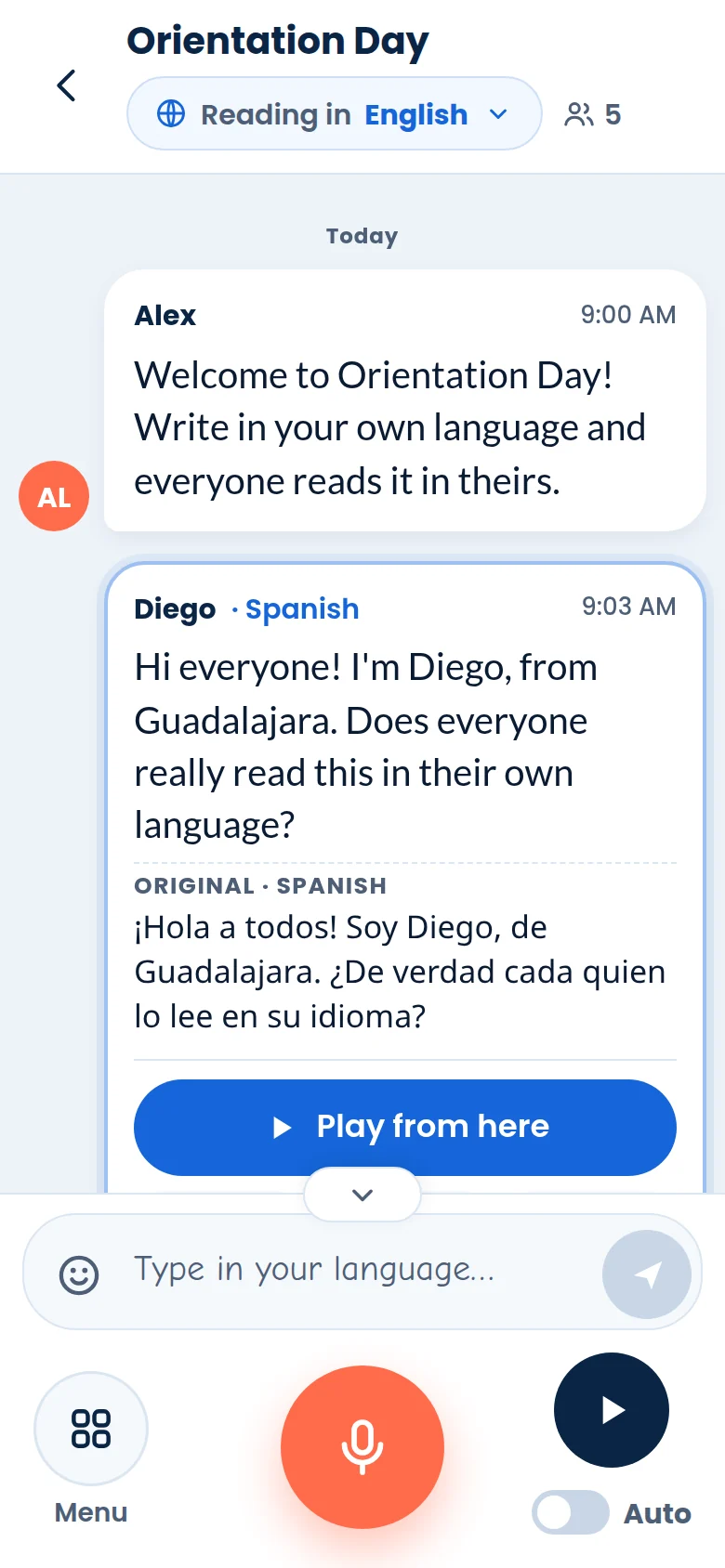
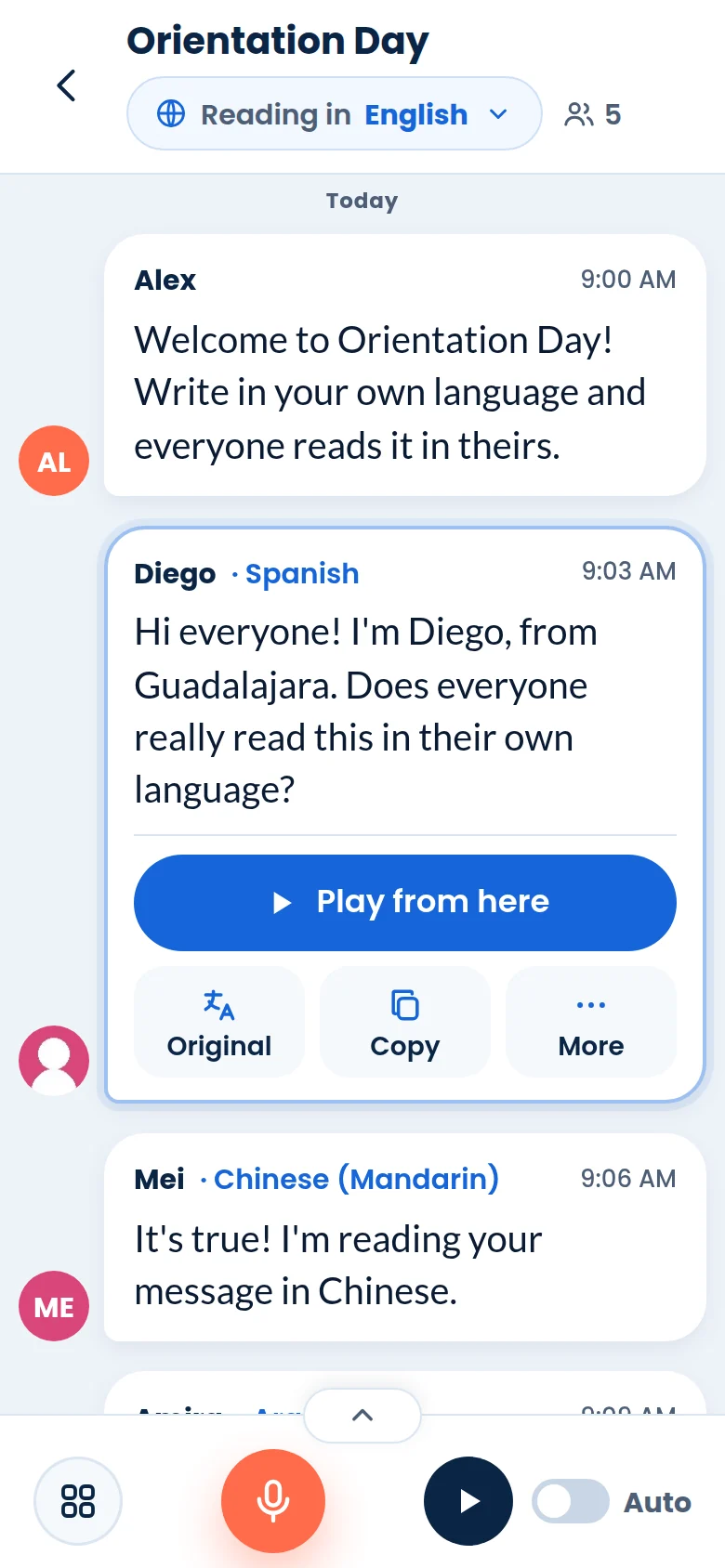
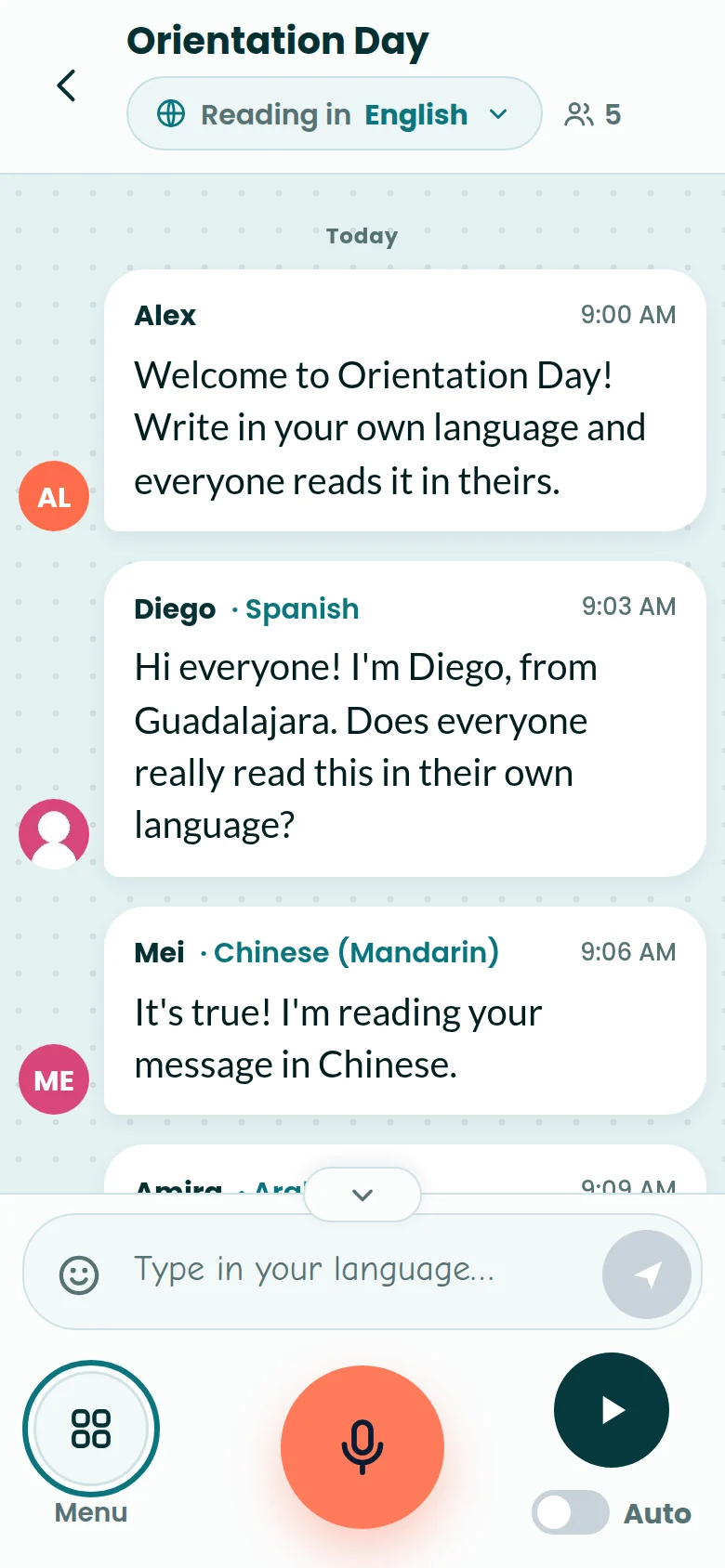
Everyone writes in their own language, and everyone reads in theirs. You never have to switch.
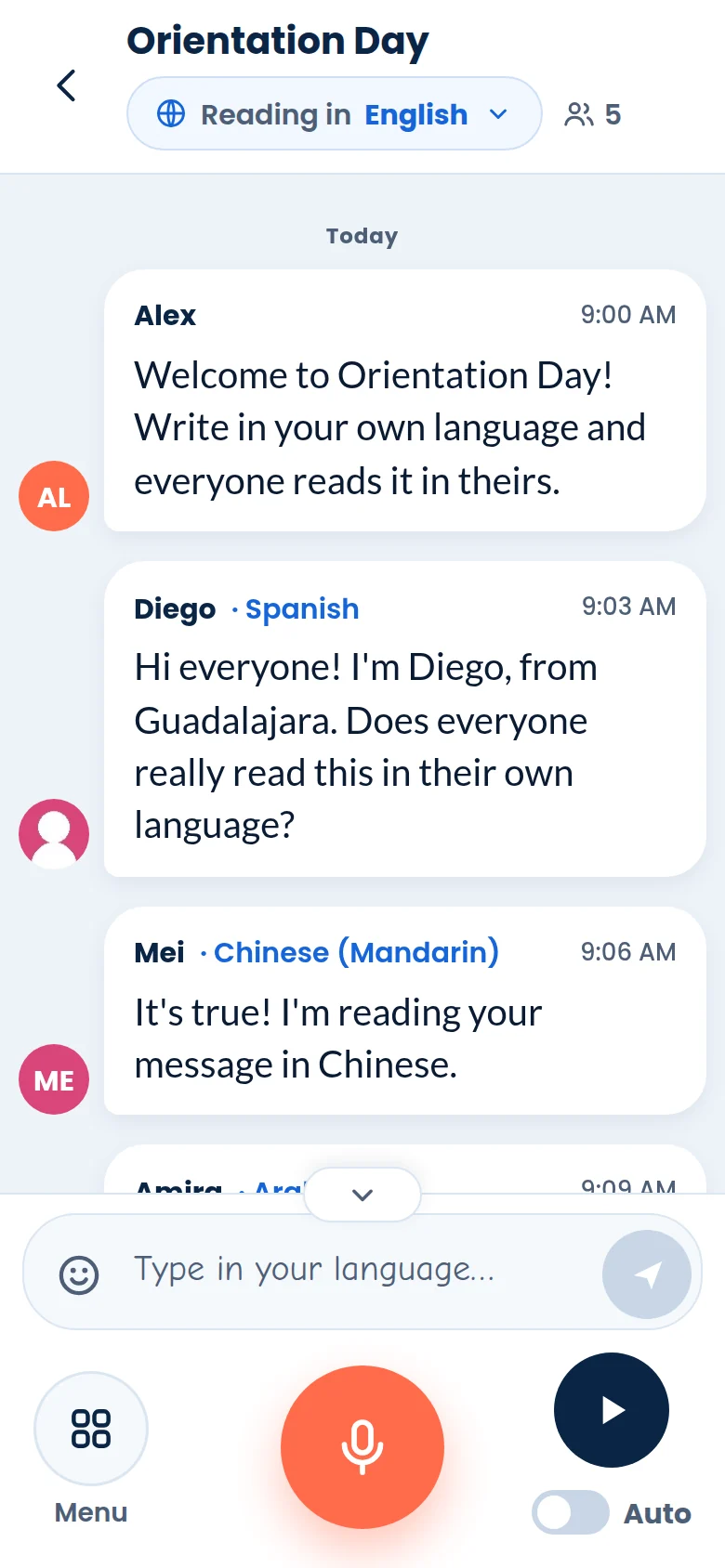
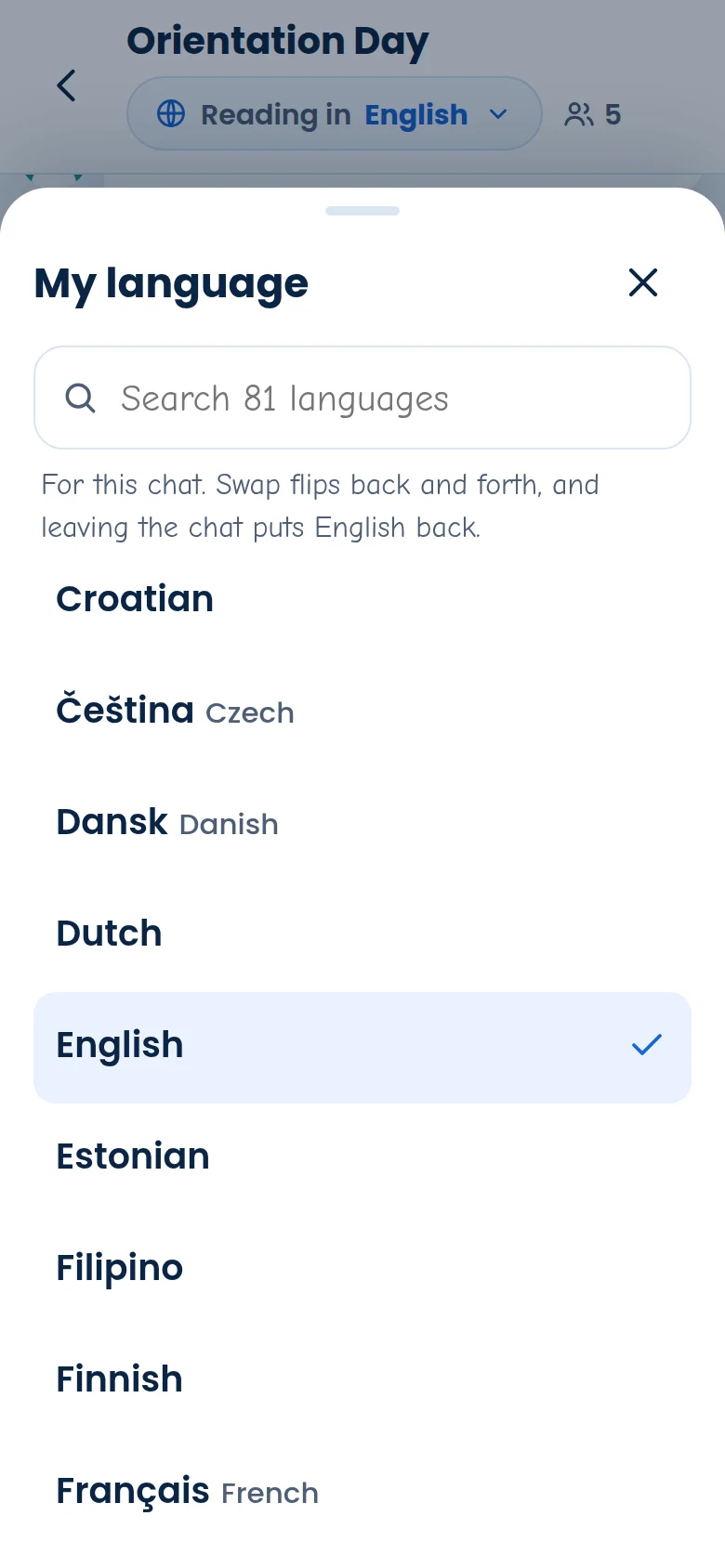
- Your language. The Reading in button at the top shows the language you read in. Tap it to pick from 81 languages, and the whole chat changes to it, history and all. Swap flips back and forth between it and your own.
- Type and send. Write in the box that says Type in your language… and tap send. The 😊 opens the emoji.
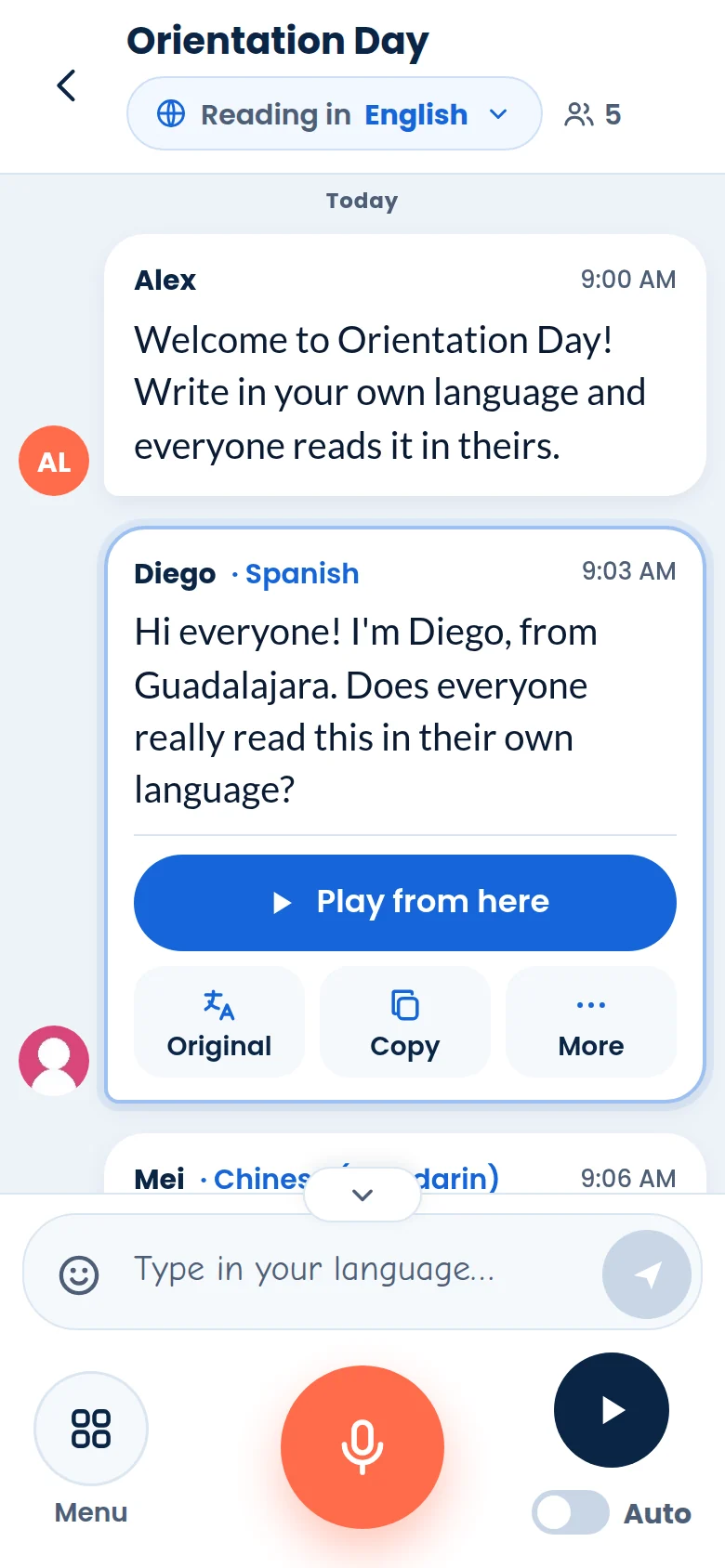
- Tap a message. Play from here reads from that message on. Original shows it the way it was written. Copy copies it. More has the rest.
- Fix a typo. More → Edit on your own message changes it for everyone, translated again and marked “edited”. Delete removes it.
- Not sent? If your connection drops, the message says Not sent. Tap Send again.
- More room. On a phone, tap the little tab above the controls, or swipe down on them, to fold them away.
Joined late? The whole conversation so far is translated into your language when you arrive.
4 · Talk and listen
Hands busy? Talk. Eyes busy? Listen.
PTT turns your voice into text, and reads every message aloud in a natural voice.
- Talk. Tap the coral mic and speak. Each sentence is sent when you finish it, and translated for everyone. Tap again to stop. With text already in the box, what you say goes into the box instead.
- Your accent. Menu → Mic accent tells PTT how you speak your language, for example Spanish from Mexico, Spain or the US.
- Listen. Tap Play to hear the chat from the top, or from a message you tapped. Tap again to stop; the next Play carries on.
- Hands-free. Turn on Auto and every new message is read aloud as it arrives.
- Playback. Menu → Playback: Mic lets you talk any time (the reading stops, then repeats after you), 2-way keeps the mic on for earbuds, and Off mutes it. You can also hear your own messages, and start over at the end.
- Voices. Each person gets a voice of their own, from 555 natural voices. Hosts can choose them in Menu → Voices.
5 · Photos and places
Show them what you mean.
Photos, files and your location go straight into the thread.
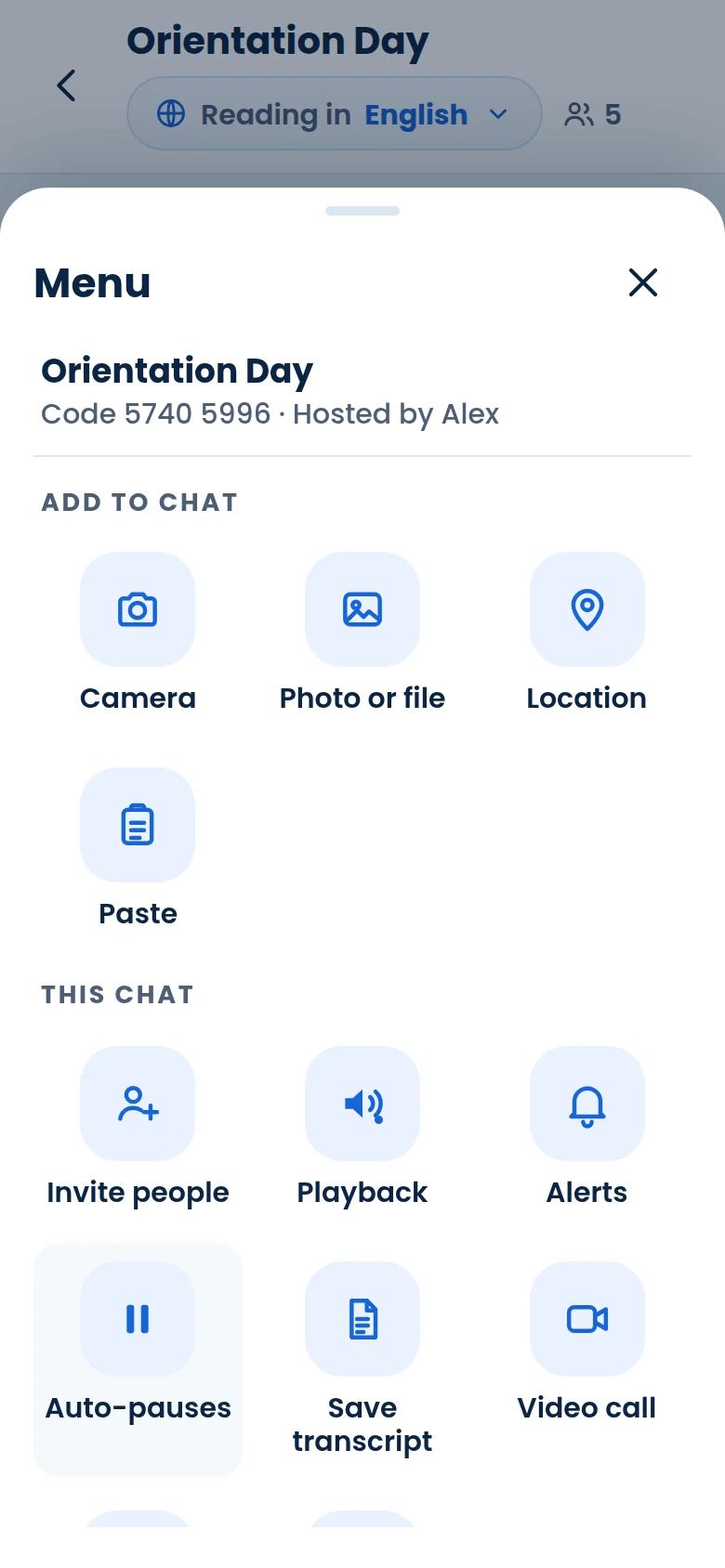
- Photo or file. Menu → Photo or file. On a computer you can also paste a picture or drop a file on the chat.
- Camera. Menu → Camera opens the camera in PTT: flip it, use the light, then Send or Retake. Repeat sends a new photo on a timer.
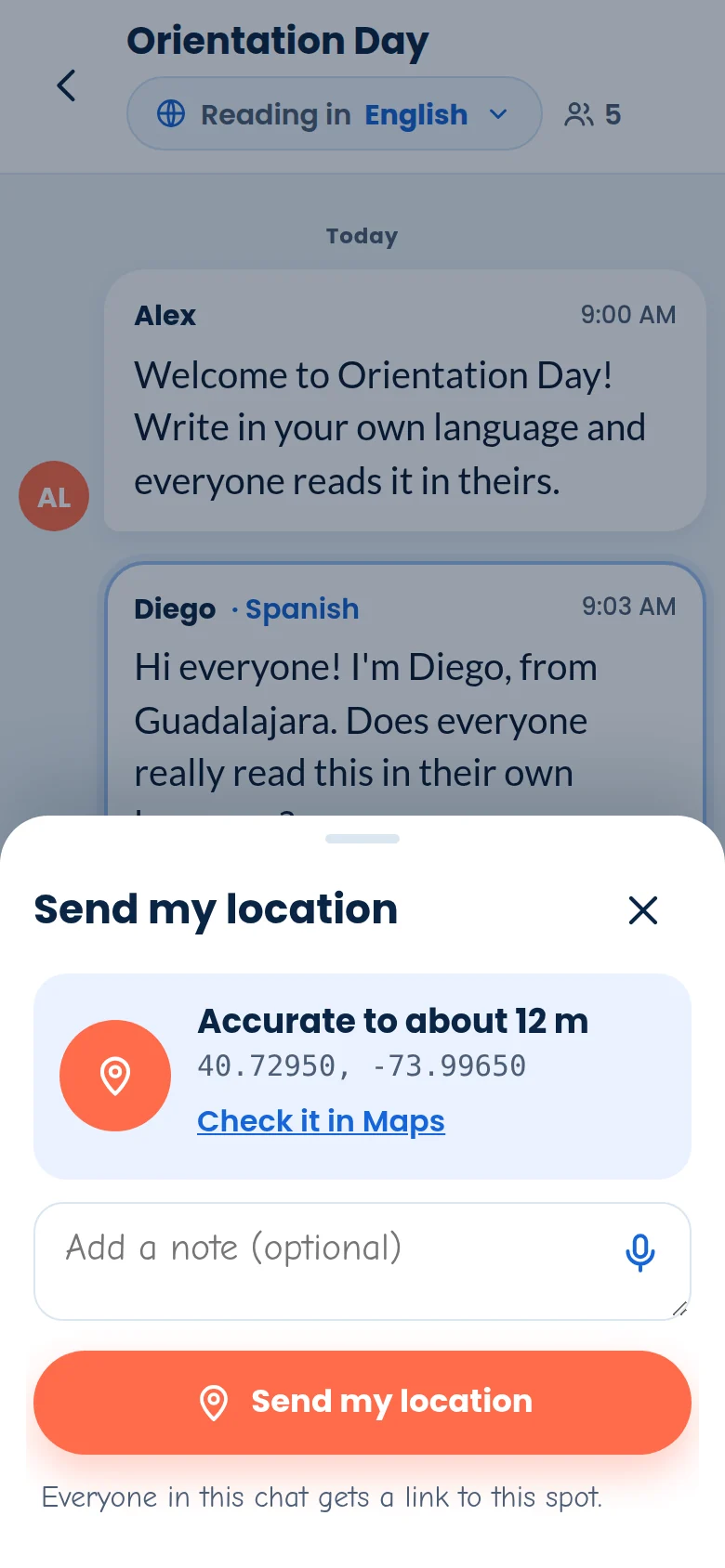
- Location. Menu → Location shows how accurate your position is. Add a note, typed or spoken with the mic in the box, and tap Send my location. Everyone gets Google, Street and Topo map links.
- Look closer. Tap a photo to see it full size, download it, or go on to the next one.
6 · Host a chat
Your chat, your rules.
Start a chat, bring people in and decide who does what.
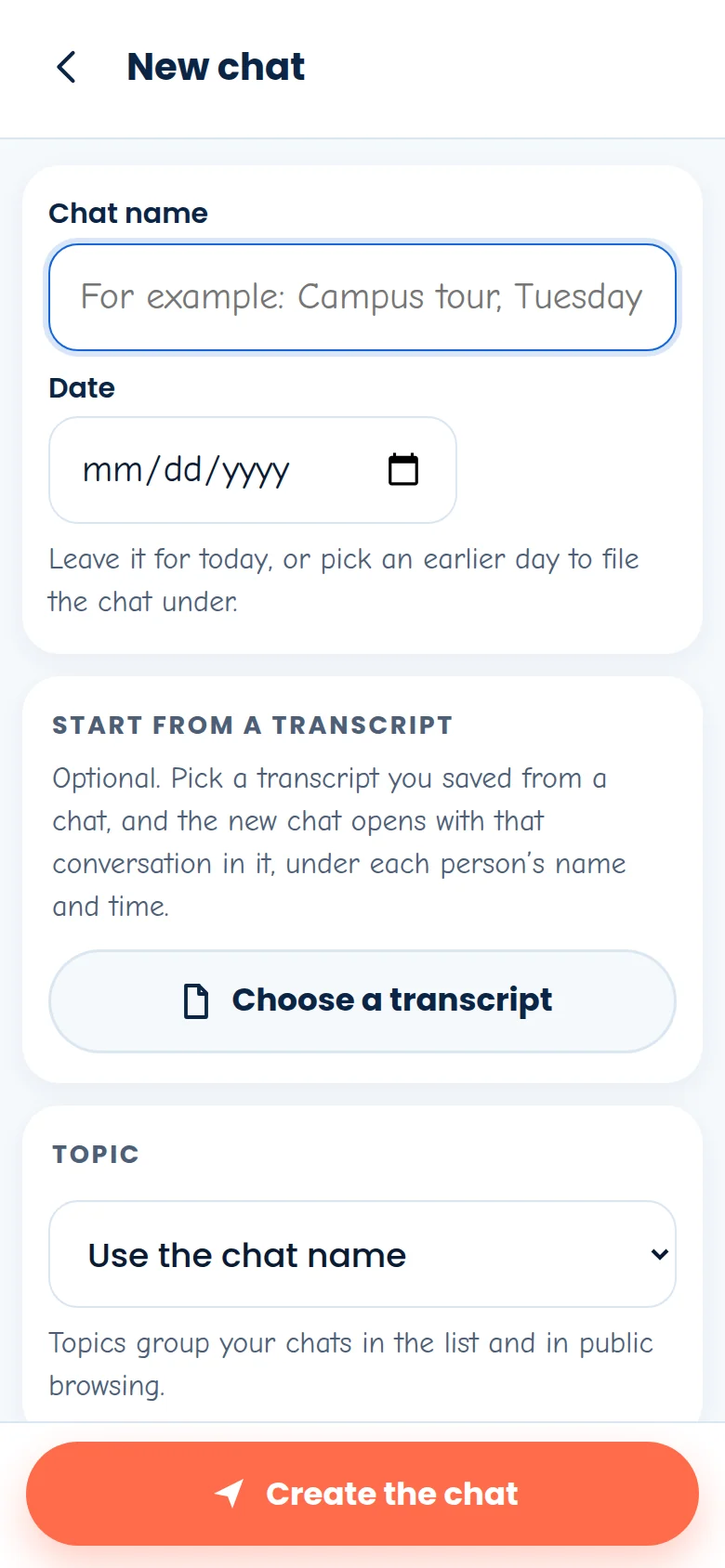
- Start it. Tap New chat on your list. Give it a name, pick a topic, choose who can join (Public for anyone with the link, a paid-plan feature, or All my friends), invite friends or a circle, and tap Create the chat.
- From a transcript. In New chat, Choose a transcript starts the chat with a saved conversation already in it. As host you can correct those messages with More → Edit.
- Invite people. Menu → Invite people: read out the code, Copy the invite link, or show the Chat QR code. People pick their own language when they join.
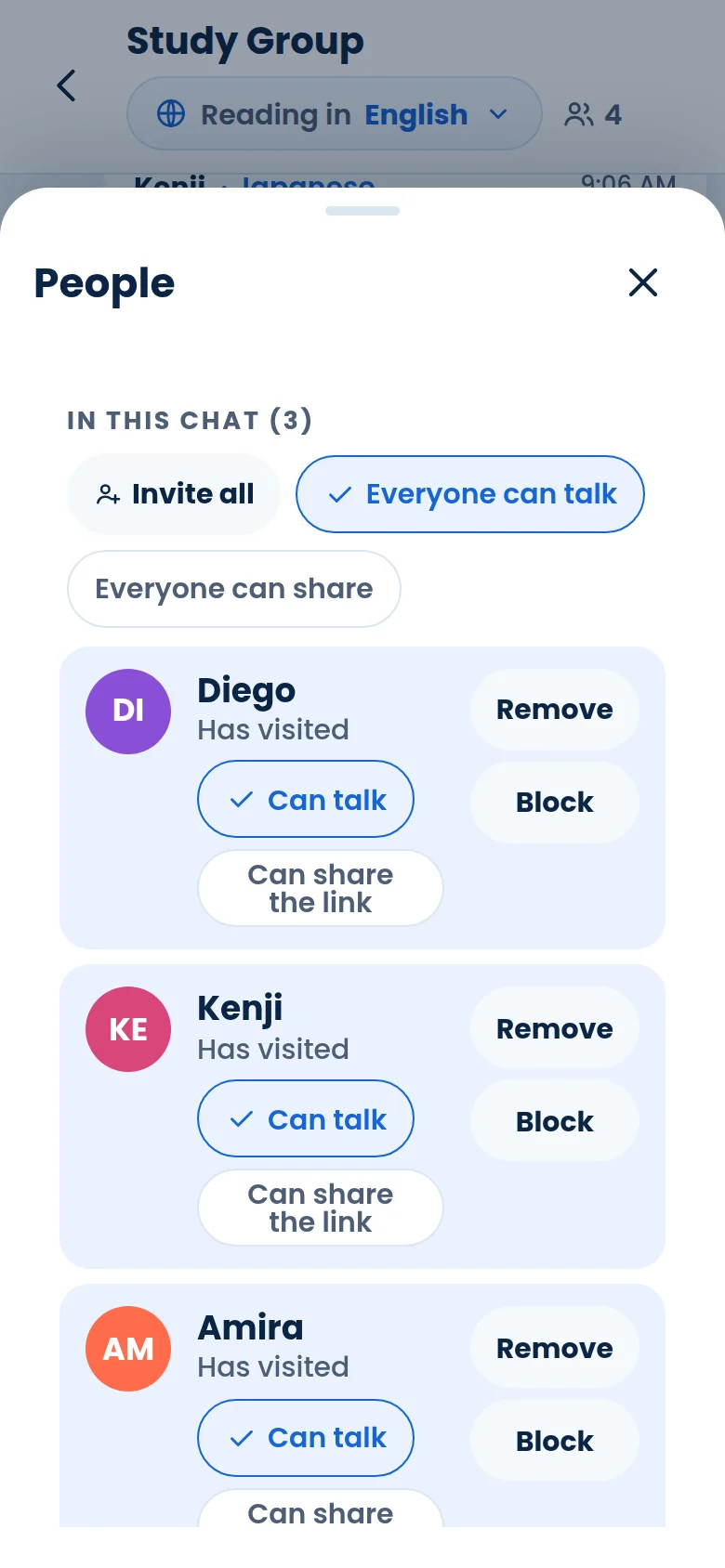
- Run the room. Menu → People: Invite all, Everyone can talk, and for each person Can talk, Can share the link, Remove or Block.
- Make it sound right. Voices picks everyone’s voice, Auto-pauses adds pauses after photos when the chat is read aloud, and Insert messages slots a message above or below another one.
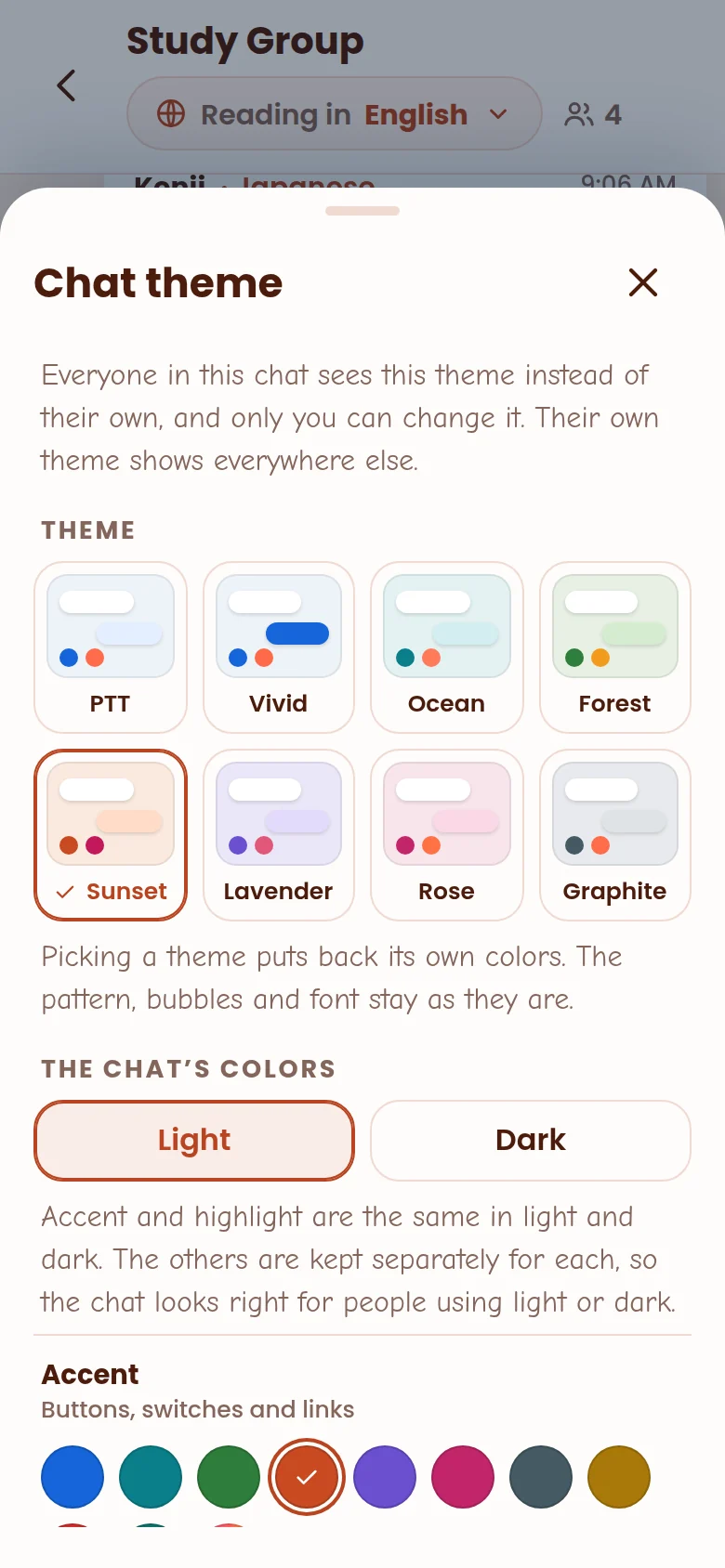
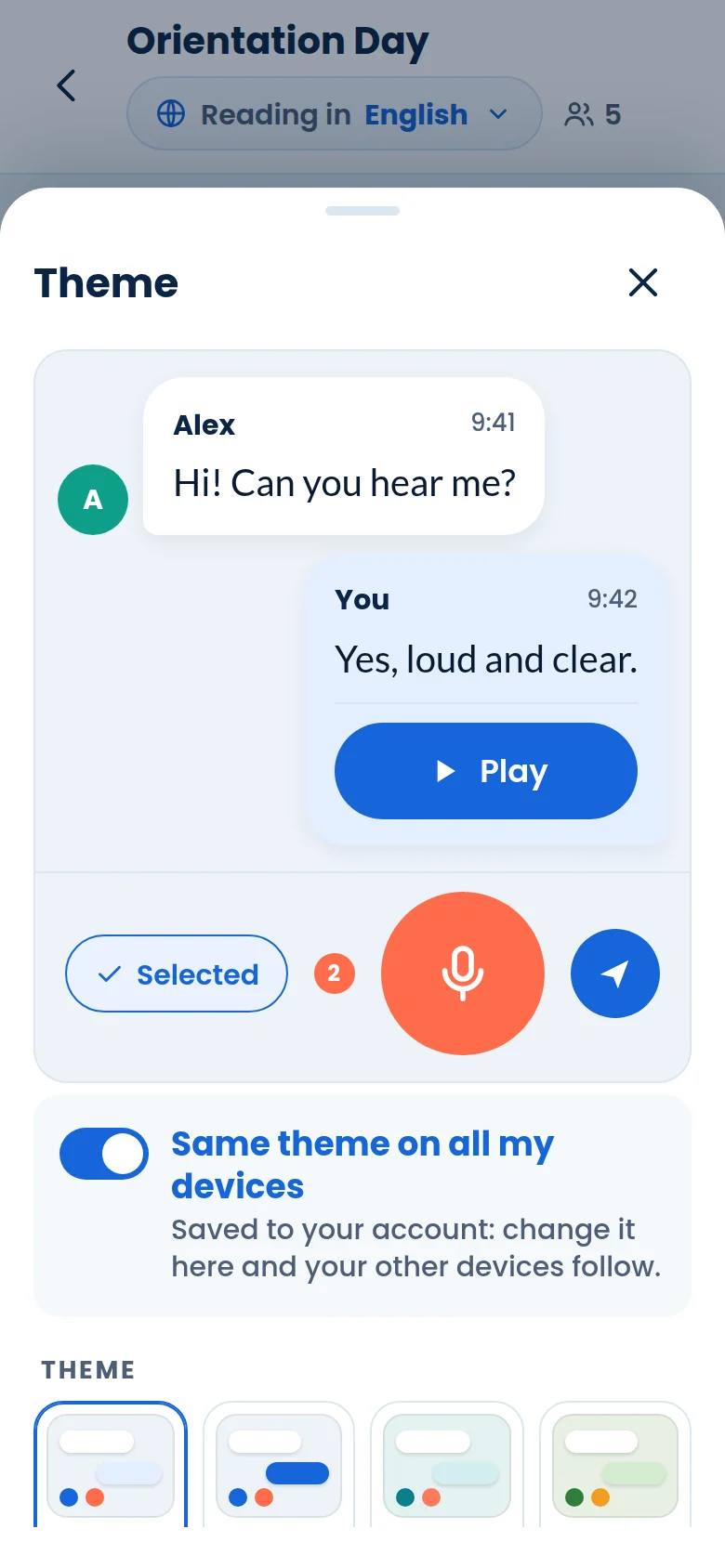
- Give it a look. Menu → Chat theme themes the chat for everyone in it.
- Wrap up. Save transcript saves the chat, one file per language. Leave or end lets you leave for now, or End chat for everyone.
7 · Friends
Your people, one tap away.
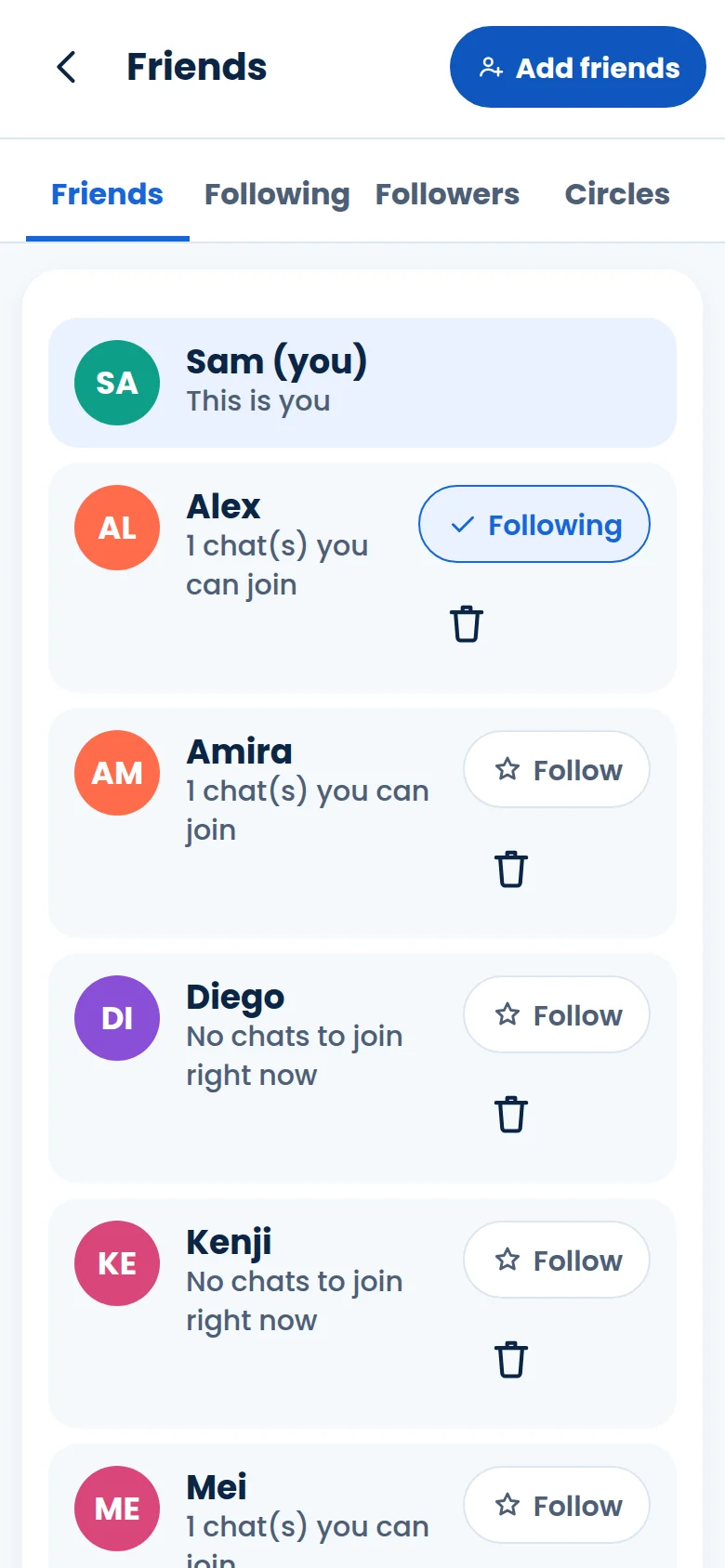
Friends can see the chats you host and join them. Tap the people button on your chat list.
- See who’s who. Friends, Following and Followers. Follow a friend to keep up with their chats.
- Add friends. Add friends shows your QR code to scan, lets you scan a friend’s, or makes an invite link for one person or many. Links last 48 hours, and you can see who used them.
- Circles. Save a group you invite often as a circle, with who can talk and share. Add a circle in a new chat invites them all.
8 · Alerts
Never miss the message that matters.
Choose what PTT tells you about, and where.
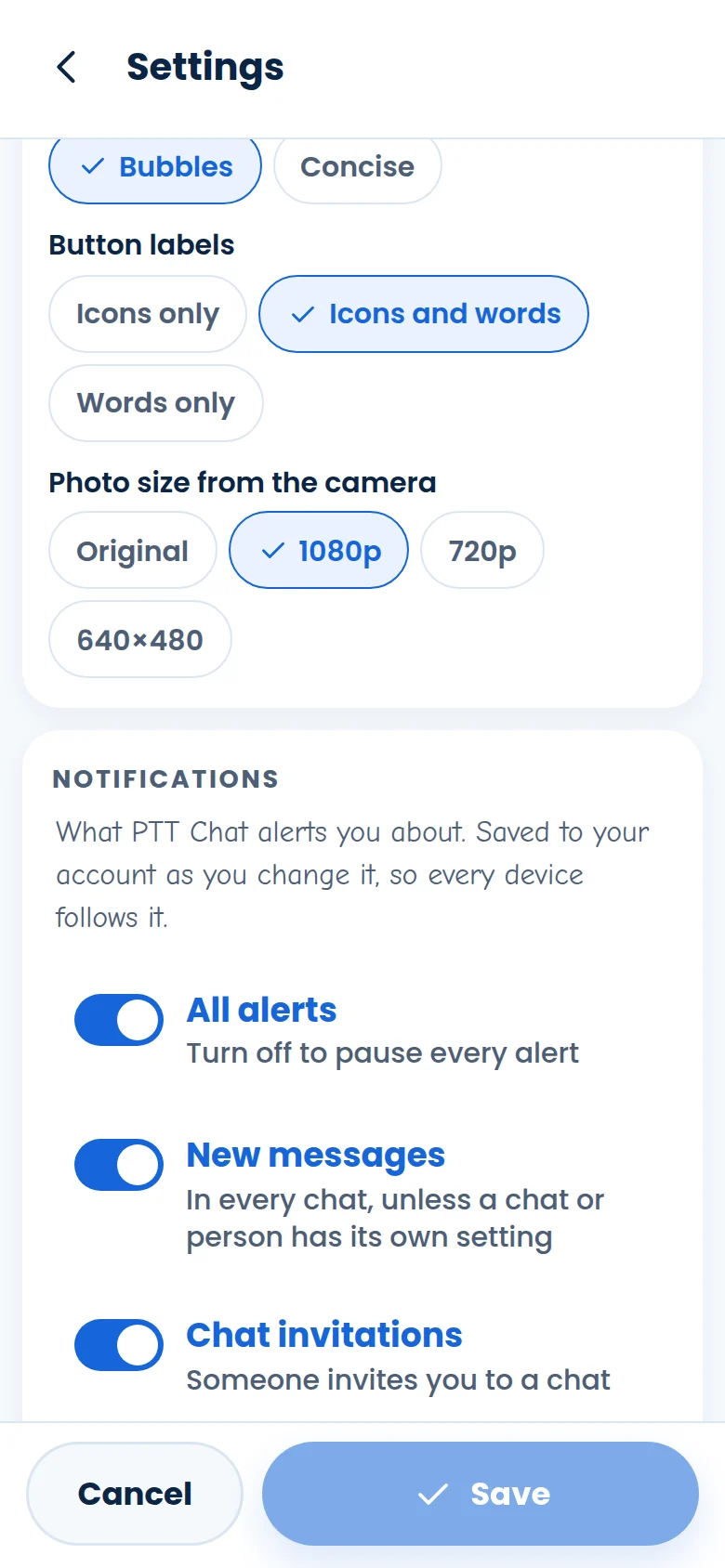
- Turn them on. Settings → Notifications → Alerts on this device. Your browser asks once; say yes.
- Check it works. Send a test, or Test in 10 seconds and close the app.
- Choose what alerts you. All alerts, New messages, Chat invitations, Friend requests and Friend accepted. Show message text and Sound are up to you.
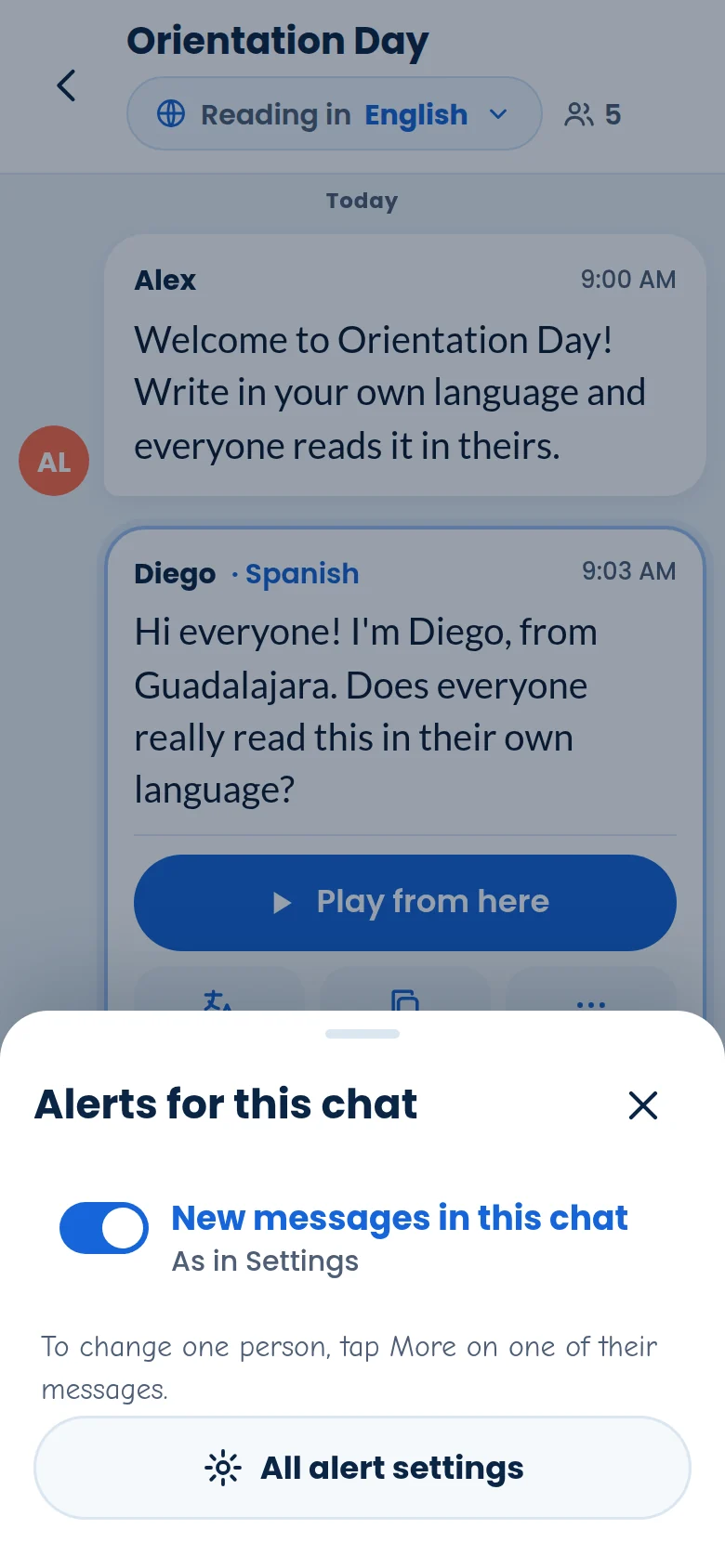
- Just this chat. Menu → Alerts turns one chat’s alerts on or off.
- Just this person. More on one of their messages → Alerts from them, in this chat or in every chat.
- What’s new. Your chat list opens with New, so you can see at a glance what came in.
On iPhone and iPad, tap Share → Add to Home Screen, open PTT Chat from there, then turn alerts on.
9 · Make it yours
Big text, dark mode, your colors.
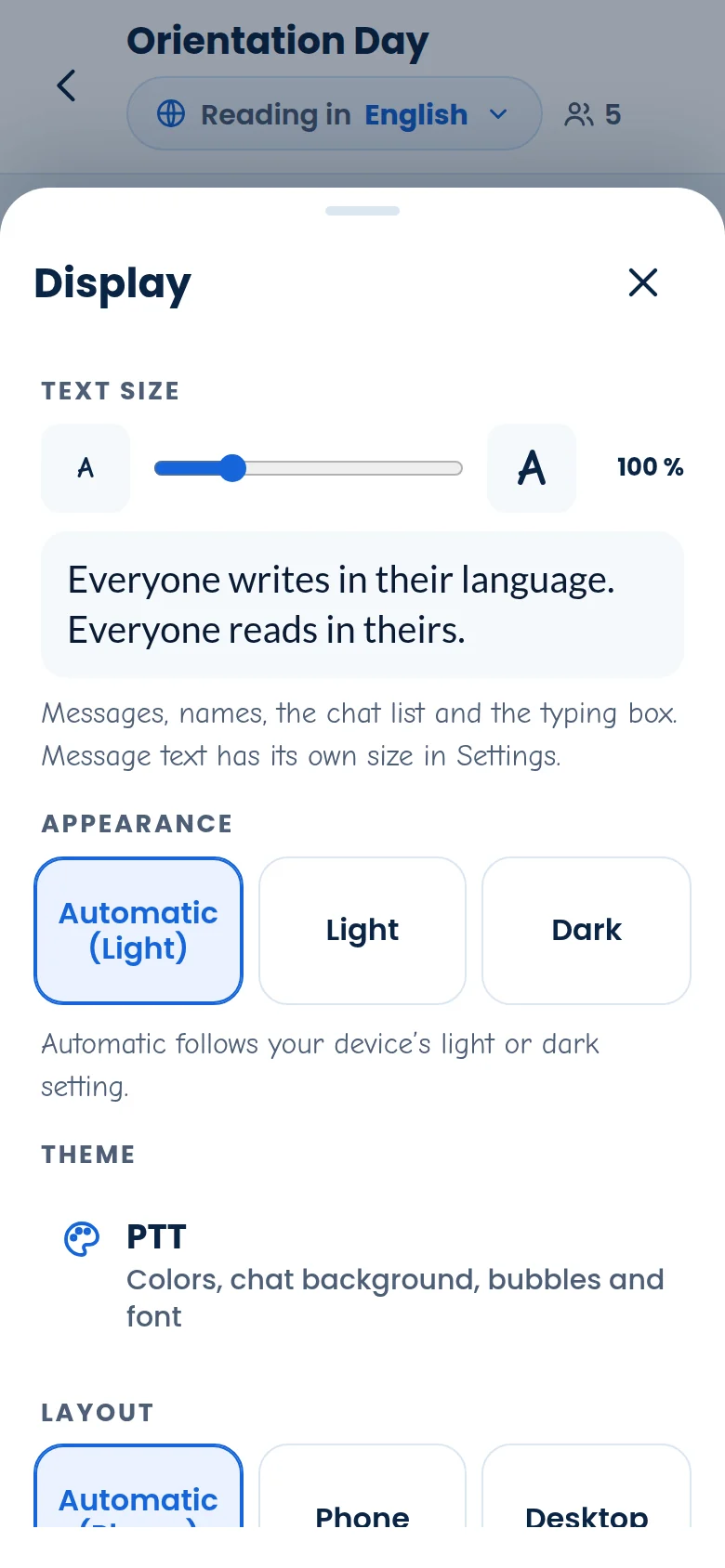
Tap your account button or Menu → Display.
- Text size. Slide from 85 % to 150 %. It covers messages, names, the chat list and the typing box.
- Appearance. Automatic follows your device, or pick Light or Dark.
- Theme. Pick one of eight themes, or your own colors for buttons, highlights, the background and both kinds of bubble, plus a pattern, a bubble shape and a font. Same theme on all my devices keeps every device in step.
- Layout. Automatic, Phone or Desktop.
- Your account. Settings has your name and screen name, your profile picture (Selfie or Attach), your password, and how messages look: their size and font, Bubbles or Concise, and button labels.
10 · Video, captions and glasses
When typing isn’t enough.
These are part of paid plans, and they all start from the chat’s Menu.
Video call
Menu → Video call opens the call beside the chat. Live translated captions run over the video, and the picture follows whoever is speaking.
Web captions
Menu → Web captions streams a talk with live captions in every viewer’s language, or captions a video or audio file. Afterwards you get a playback link.
How live captions work →Smart glasses
Menu → Glasses connects Mentra Live glasses through the PTT Bridge app, so you can share what you see and hear replies, translated, in the glasses’ speakers.
Meet PTT Bridge →Quick fixes
Something not working?
The mic doesn’t hear me.
Your browser asks the first time you tap the mic. If you said no, allow the microphone for this site in the browser’s site settings (the icon beside the address), then tap the mic again. If PTT mishears your accent, set Menu → Mic accent.
I don’t get alerts.
Check that Alerts on this device is on in Settings → Notifications, then use Test in 10 seconds with the app closed. If nothing arrives, allow notifications for your browser in your phone’s settings. In Brave, turn on “Use Google services for push messaging” in its privacy settings. On iPhone and iPad, alerts work from the Home Screen app.
My location won’t send.
Allow location for this site in your browser’s site settings, then tap Try again. If a GPS fix takes a while, PTT offers your approximate location instead.
A message says Not sent.
Your connection dropped while it was on its way. Tap Send again once you’re back online, or Remove to drop it. PTT never sends it twice by itself.
I can read but can’t type.
The host has made you listen-only for now. When they let you talk, the typing box and the mic turn on.
Is the translation perfect?
It’s excellent, and it’s still AI. For high-stakes conversations, check what matters with Original and involve a qualified interpreter when needed.
Learn it by doing.
Ten quick missions on a pretend phone. Nothing you do there goes to anyone.